How to Create a Multi Doc Documentation Page?
Summary: Effortlessly build a comprehensive multi-documentation page with the EazyDocs Multi Doc Widget. This guide walks you through selecting templates, customizing layouts, filtering docs, and publishing a powerful knowledge base using Elementor in minutes.
Creating a Multi Doc Page with EazyDocs Widget
Ready to effortlessly build a multi-documentation page using the EazyDocs Multi Doc Widget? Buckle up, as this quick guide will empower you to create a comprehensive knowledge base in minutes.
Step 1:
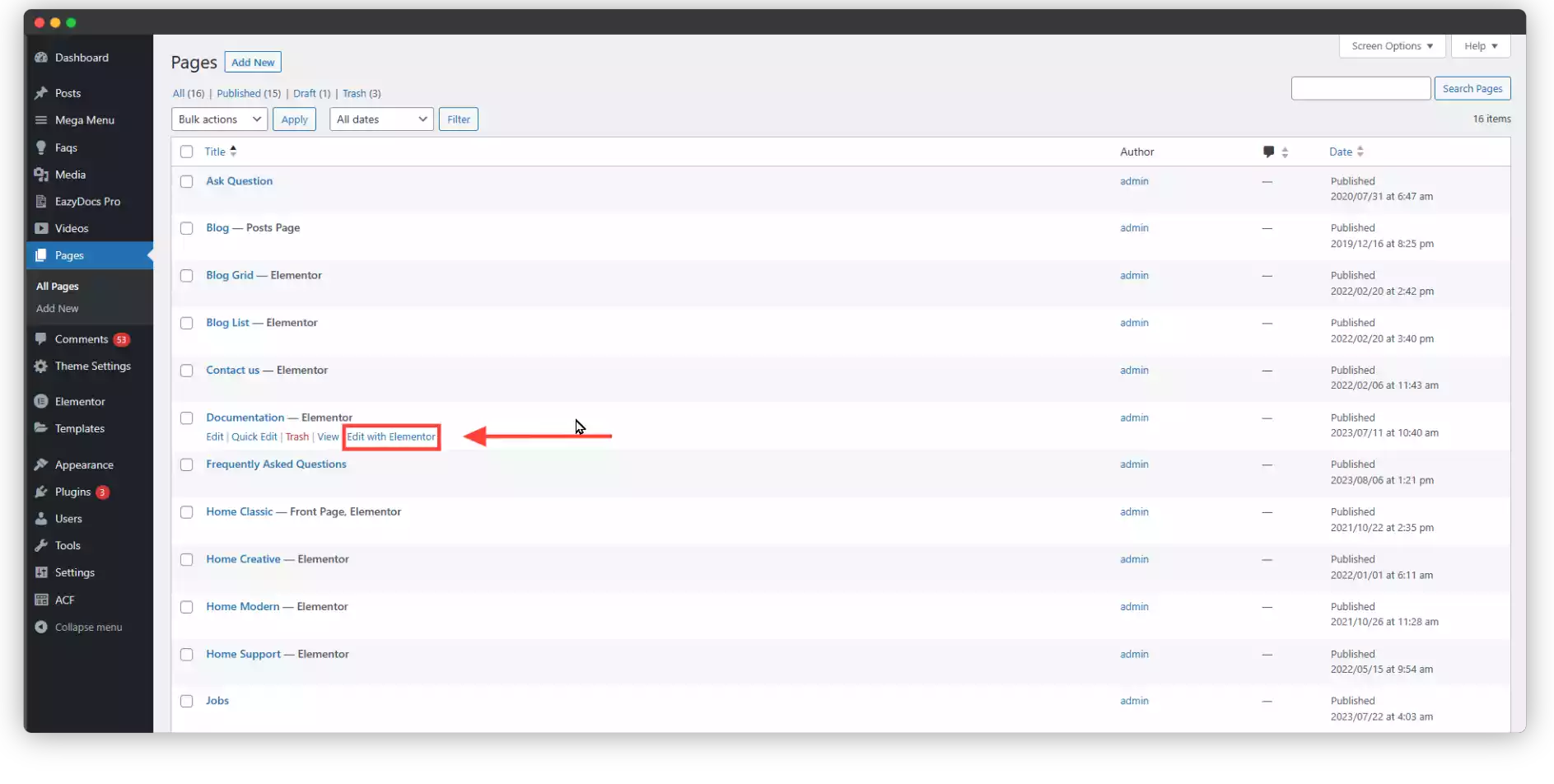
- Dive into your WordPress dashboard and navigate to “Pages.”
- Choose to either craft a new page or enhance an existing one by clicking “Edit with Elementor.”
Step 2:
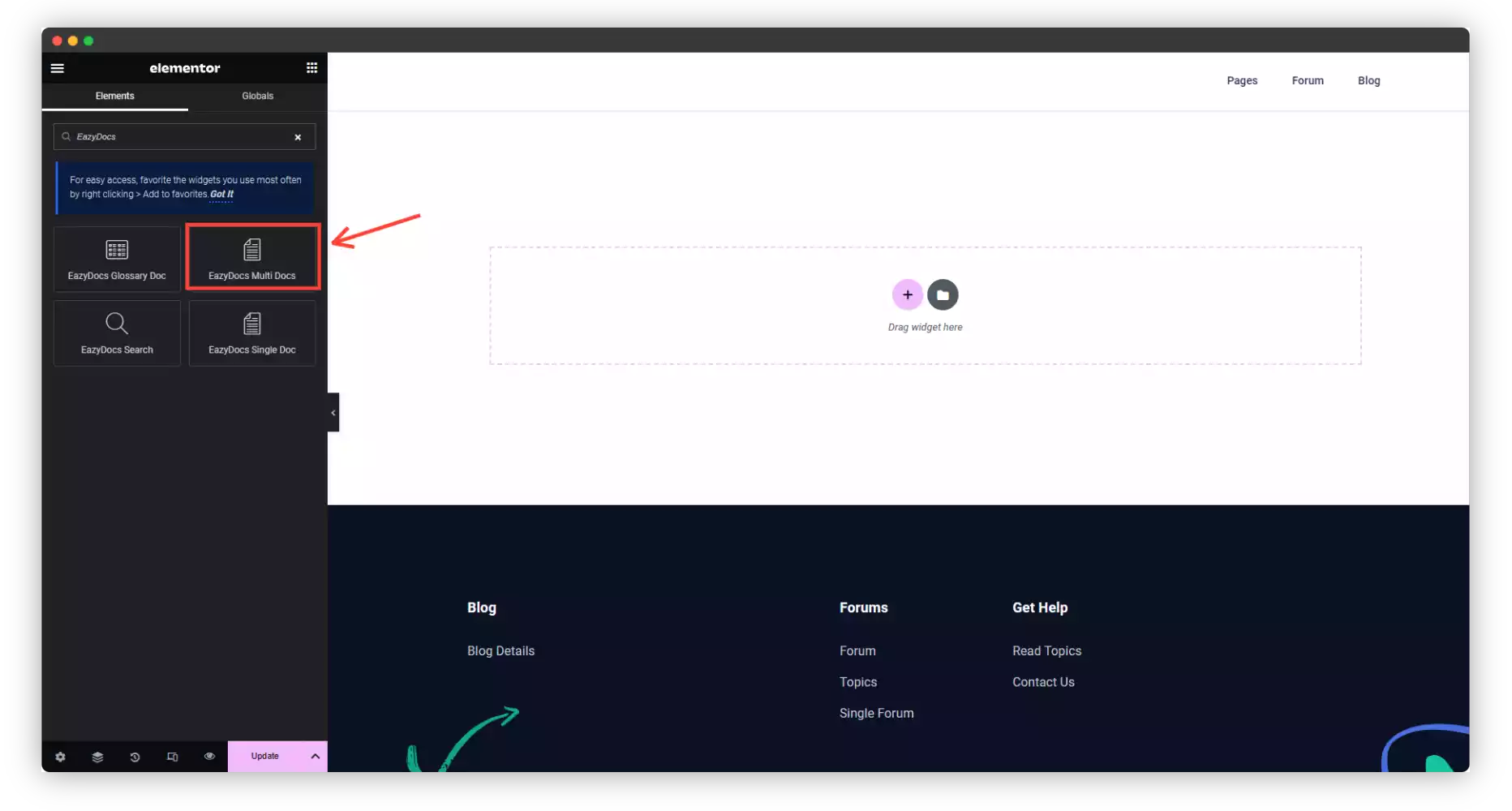
- In the Elementor editor, use the search bar to find the “Multi Doc” widget.
- Drag and drop this mighty widget onto your page. Voilà! A multi-doc knowledge base based on your published content appears before your eyes.
Step 3:
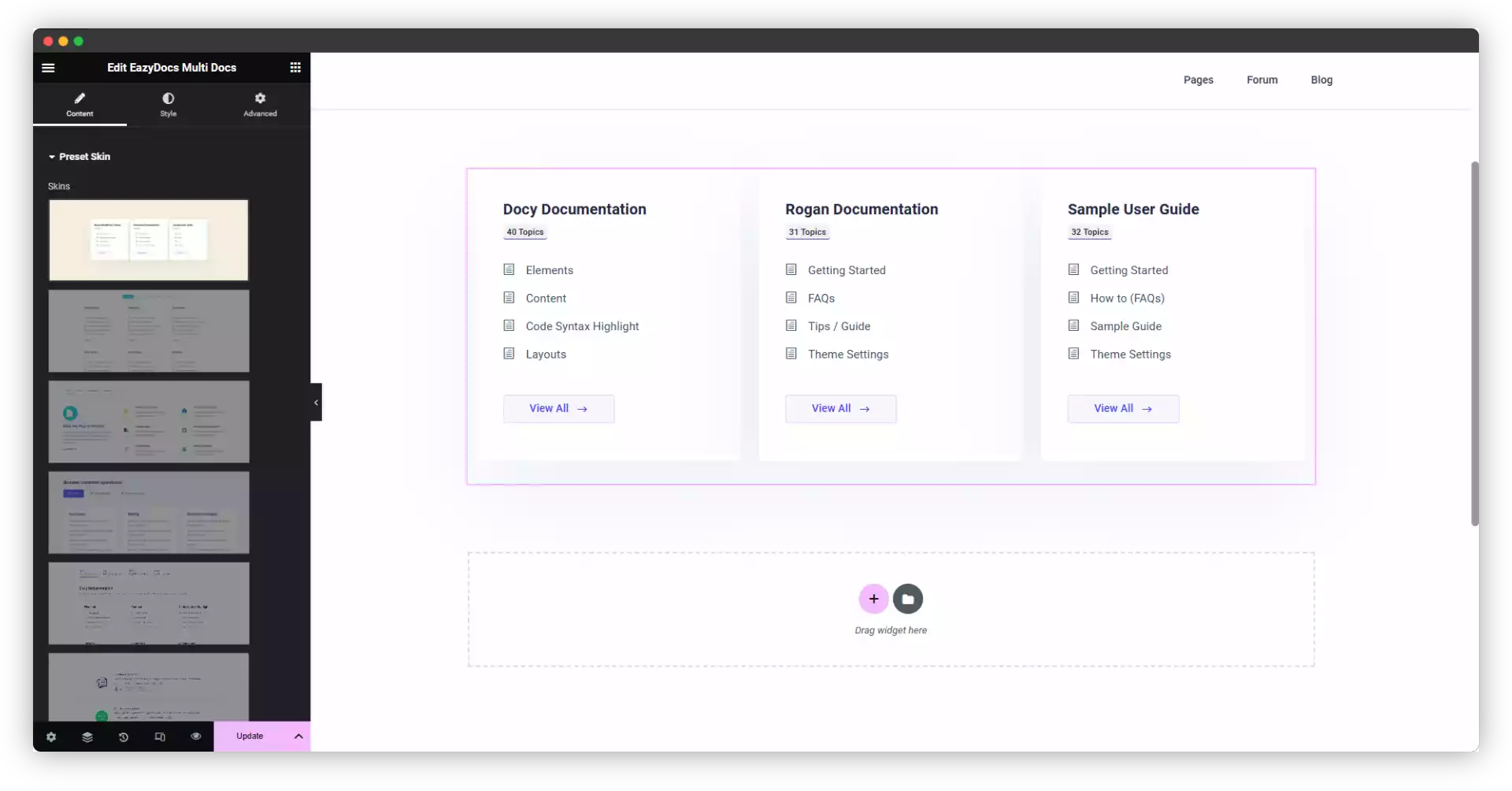
- Navigate to the “Content” tab of the widget.
- Under “Preset Skin,” choose your preferred layout from the stunning selection of Elementor multi-doc templates. Find one that reflects your brand and content!
Step 4:
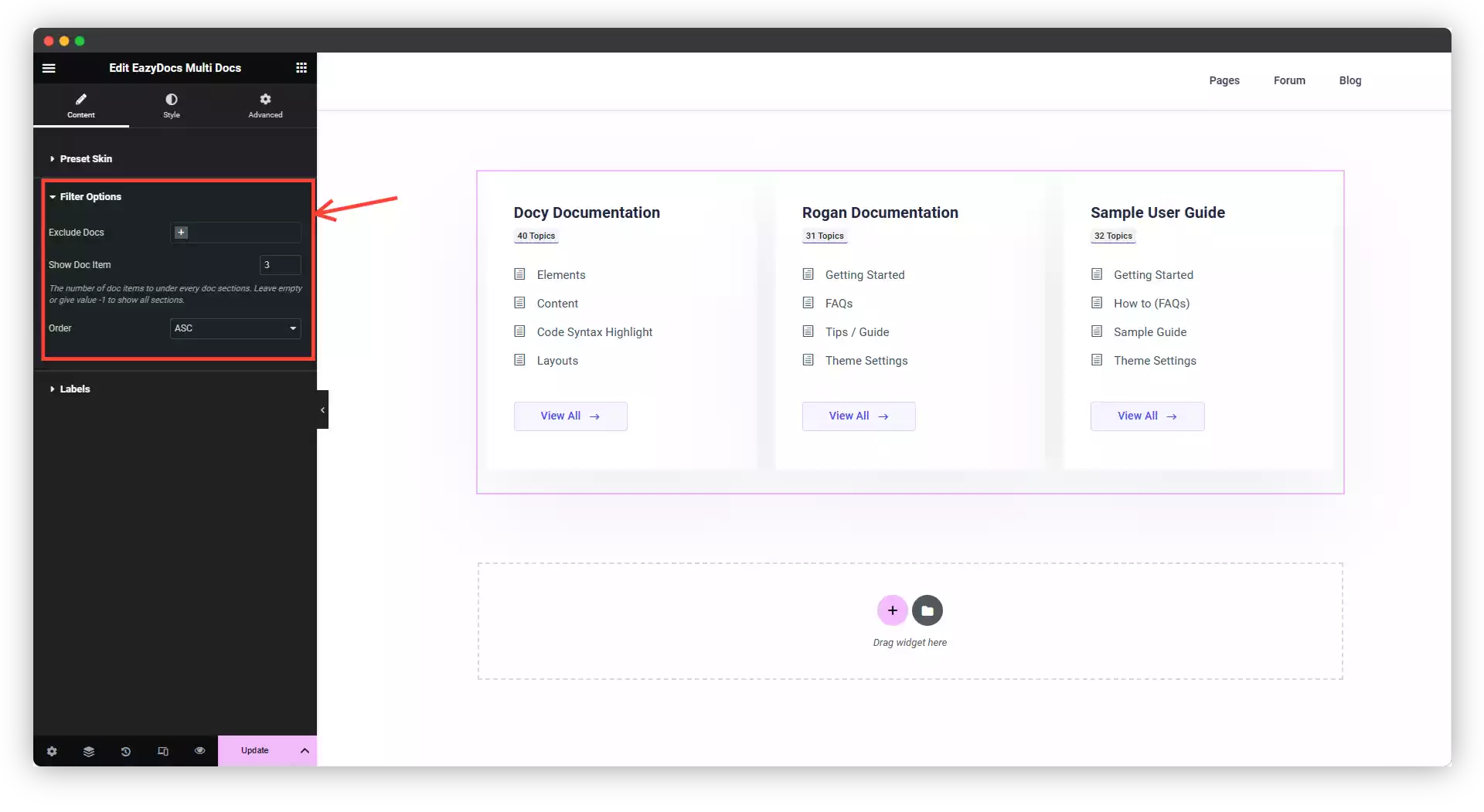
- Still in the “Content” tab, you’re in control! Decide:
- How much documentation to showcase.
- The order in which your knowledge shines.
- Want to exclude specific docs? No problem! Use the “Filter” option to curate your content precisely.
- Once you’ve crafted your ideal layout, hit “Publish” or “Update” to make your knowledge base accessible to the world!