
How to Add an EazyDocs Search Bar to Any Knowledge Base Page?
Summary: Adding a powerful search bar to your knowledge base is easy with EazyDocs. Follow simple steps in Elementor to add, customize, and publish a search bar, ensuring your users can quickly find the information they need.
A functional search bar is a must-have feature for any content-heavy website. It allows users to quickly and easily find the information they are looking for, without having to scroll through pages of content.
EazyDocs makes it easy to add a functional live search bar to your website, without the need for any additional plugins.
How to Add a Search Bar to Any Knowledge Base Page?
Step 1:
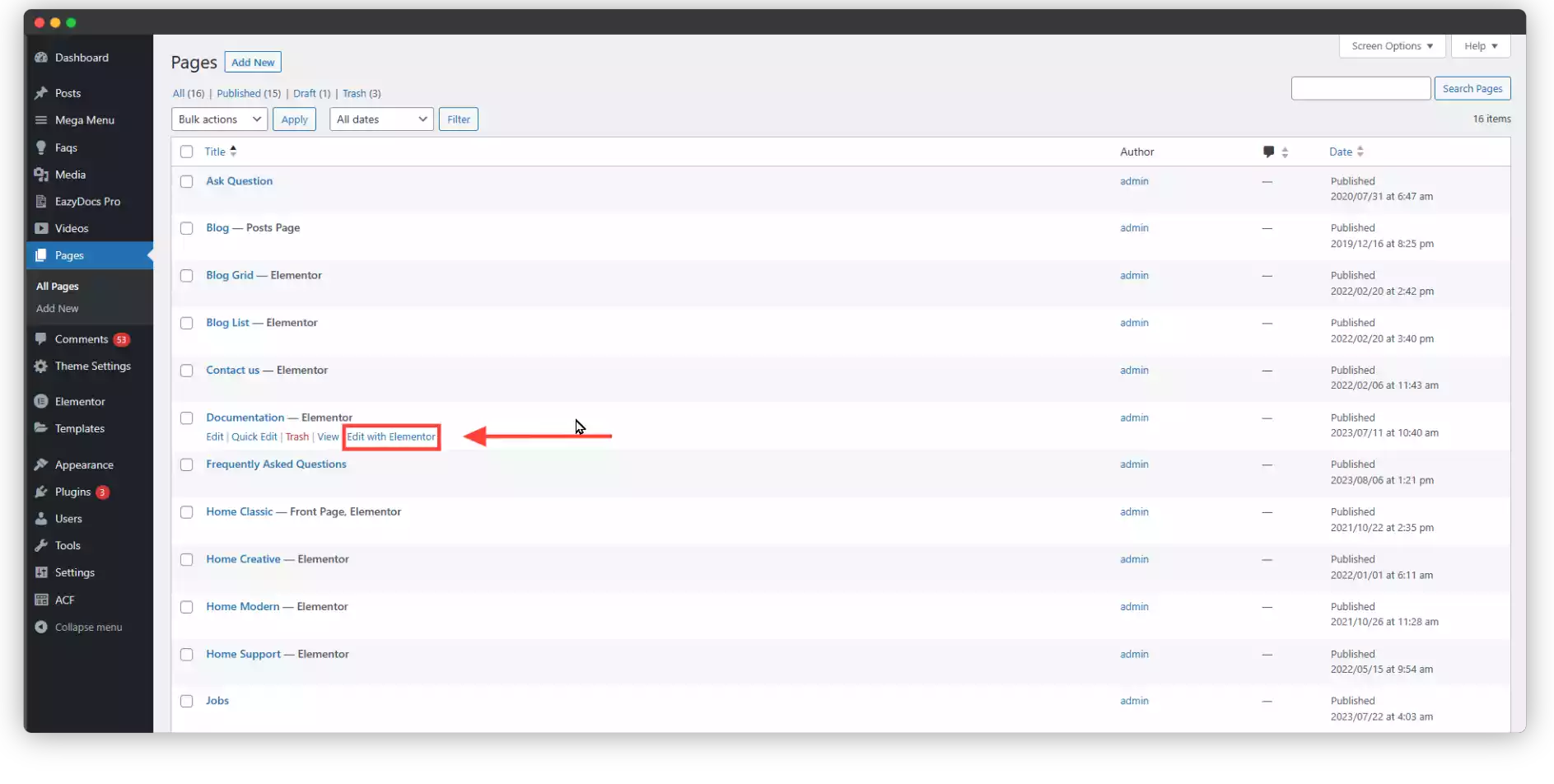
- Head to your WordPress dashboard.
- Navigate to “[direction] Pages > All Pages [/direction]” and either:
- Create a new page for your knowledge base.
- Click “Edit with Elementor” to transform an existing page.
Step 2:
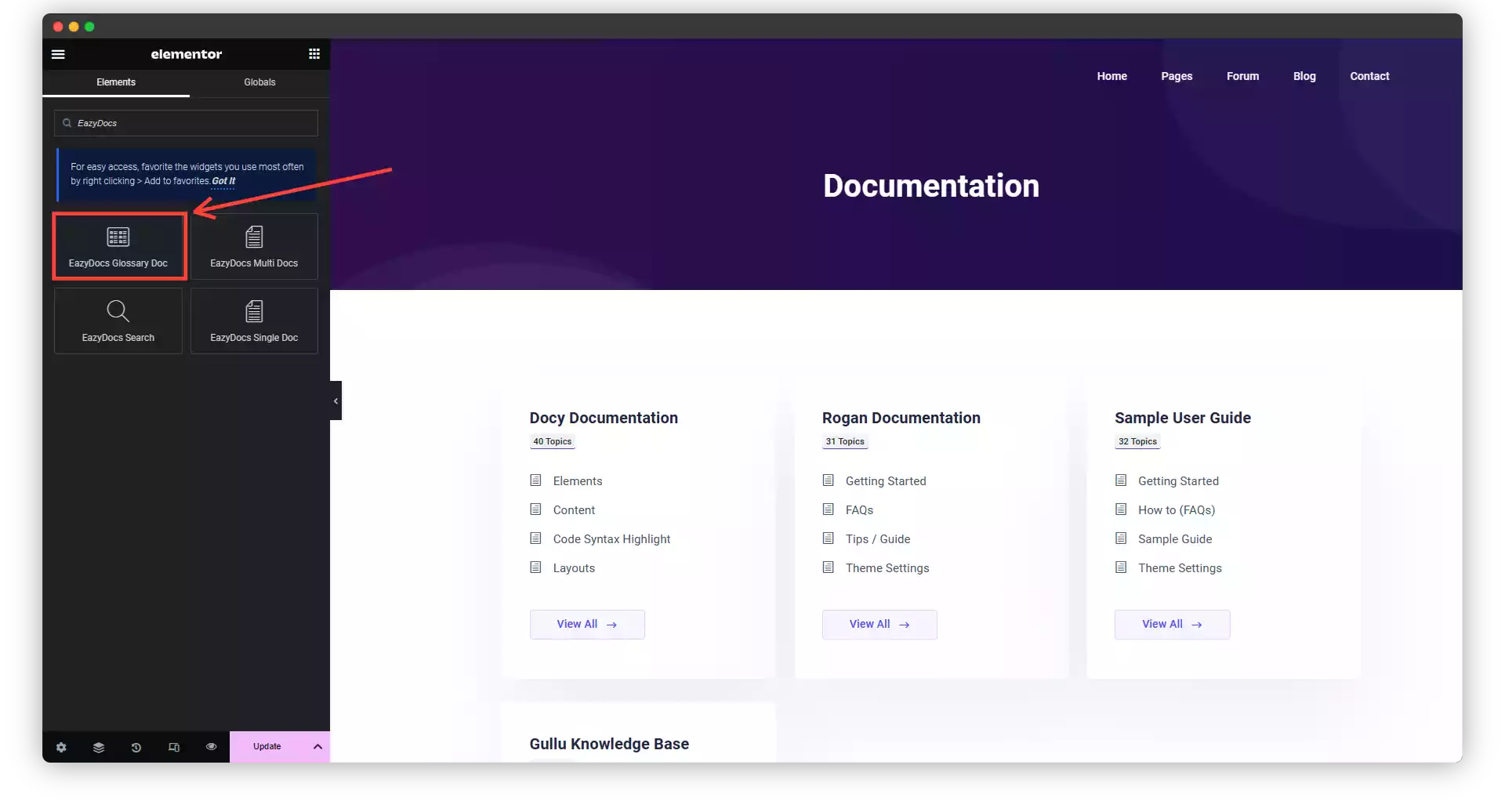
- In the Elementor editor, search for the “EazyDocs Search” widget.
- Drag and drop it onto your page, bringing search magic to your content.
Step 3:
- Drag and drop the search bar where you want it on your page.
- In the “Content” tab, personalize the experience:
- Add placeholder text to guide users.
- Choose an icon to make the search bar stand out.
- Set preset focus keywords for relevant results.
- Feeling creative? Customize margins, padding, typography, background, and border colors to match your brand.
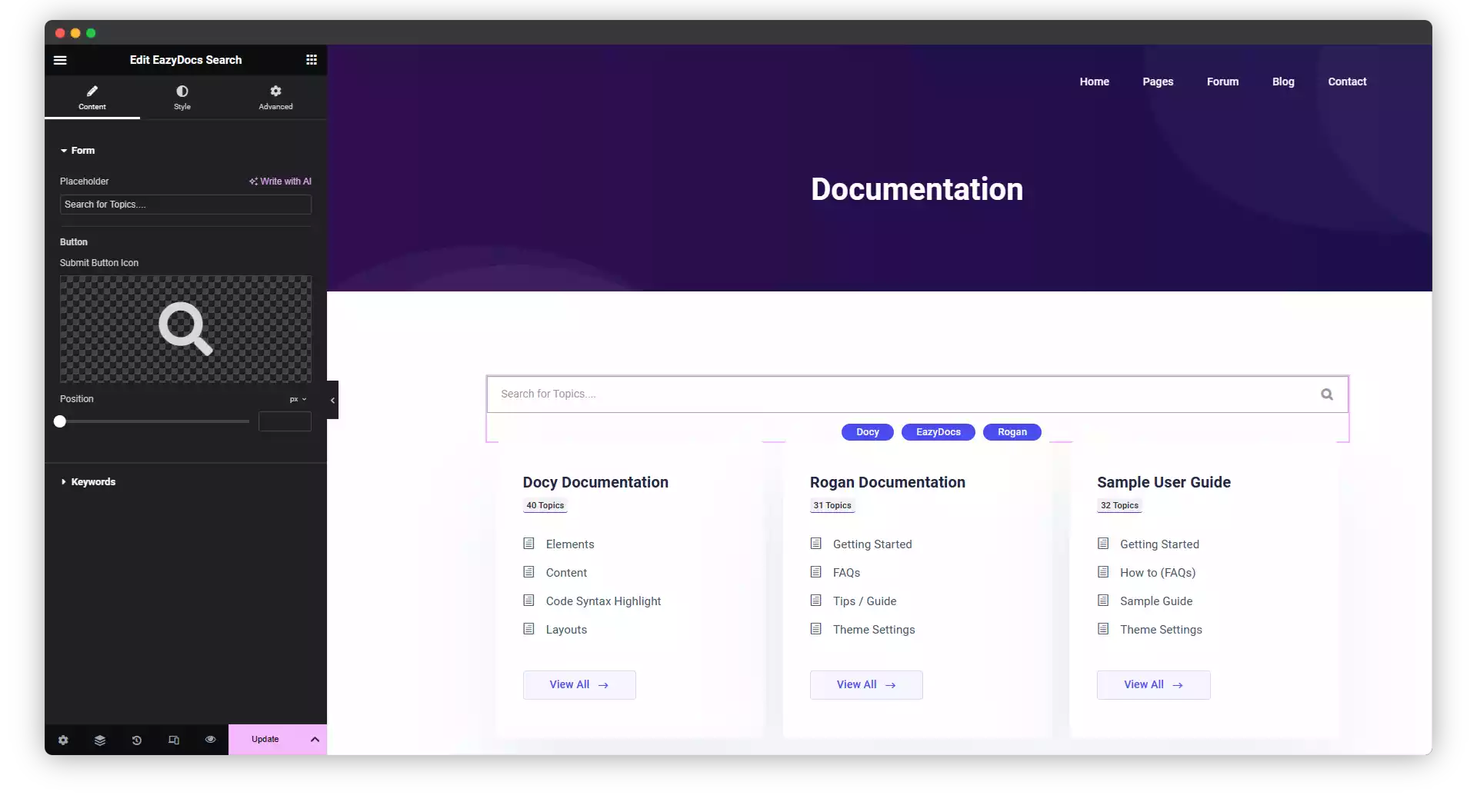
- Once you’re happy with your search bar, hit “Publish” or “Update” to share the power of knowledge with your audience.
